Chip widget
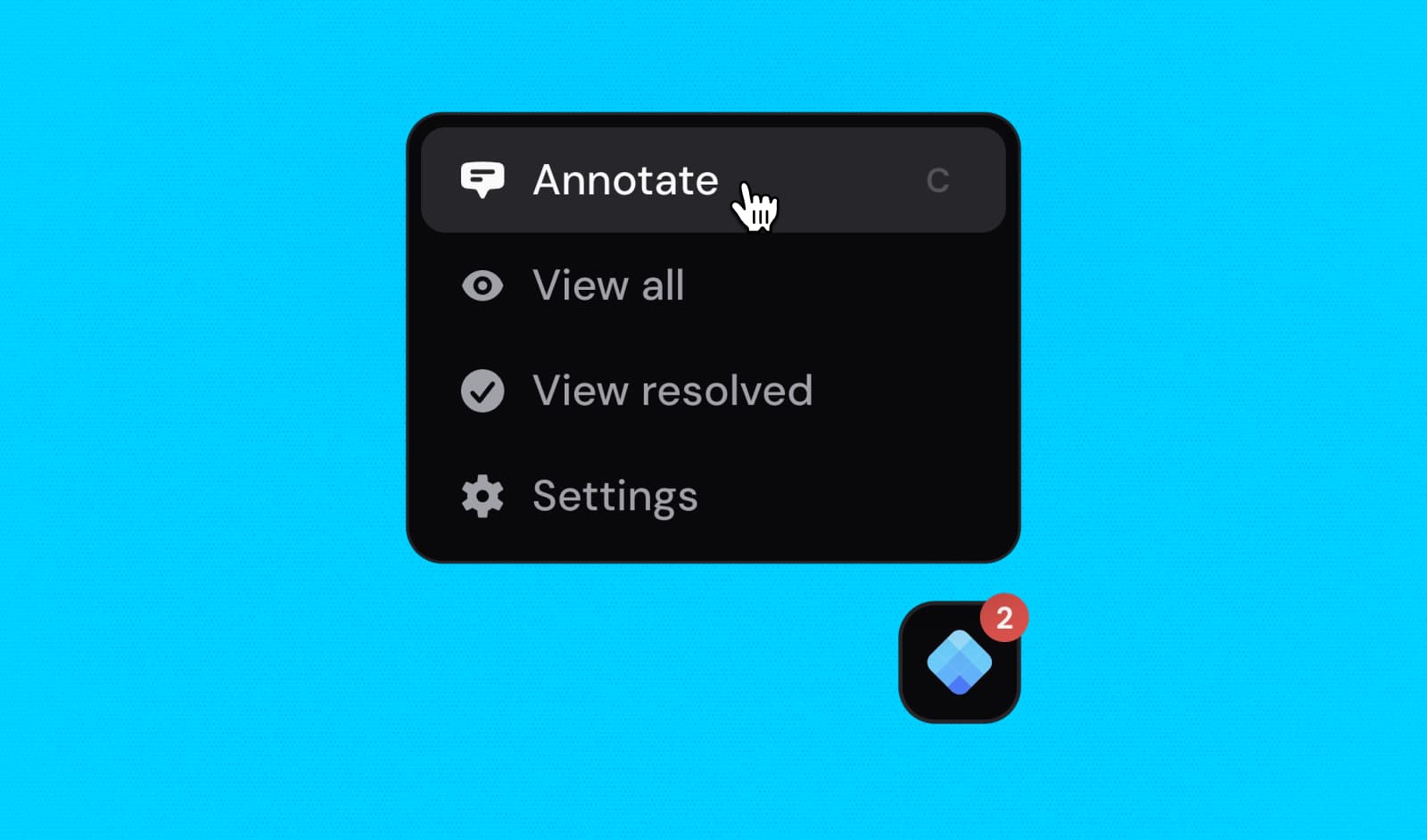
The chip is a small control you embed on your own site. Your team and the collaborators you invite can leave a pin right on the page, with nothing to install. Accounts for people who only give feedback are free, during beta and after, and each chip is tied to one project.
Embed it
Get your snippet
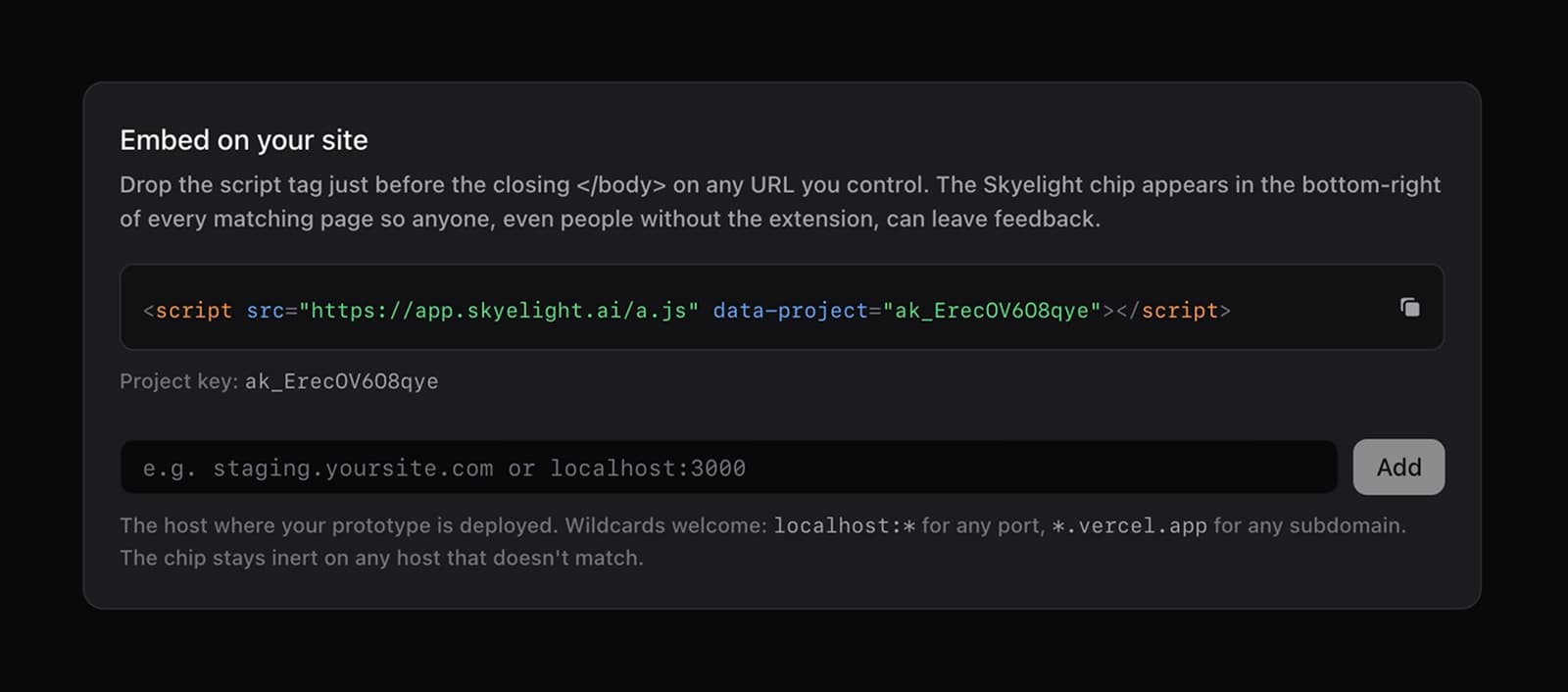
In the dashboard, open the project you want the chip to feed and open its Settings. Copy the embed snippet, which is preconfigured with that project’s key, and check the allowed URLs so the chip only loads where you expect.
Add it to your page
Drop the snippet in before the closing </body> tag of the pages you want to
cover:
<script
  src="https://app.skyelight.ai/a.js"
  data-project="YOUR_PROJECT_KEY"
></script>
Replace YOUR_PROJECT_KEY with the key from your project settings. The chip
appears in the corner once the page loads.
How access works
The chip requests a short-lived overlay token for the visitor so it can write pins into your workspace without exposing any workspace credentials in the page. That token is scoped to the one project the chip is configured for, and to the URLs you allow, so a chip on your marketing site can never write into your staging project. The project key in the snippet is safe to expose publicly — access is controlled by the scoped token, not by the key.
The chip is only visible to people signed in to a Skyelight account. On a public or production URL, visitors without a Skyelight account never see it, so your page looks exactly as it always has — only your team and the collaborators you have invited ever see the feedback layer.
Leaving a pin with the chip
Anyone who can see the chip is already signed in to Skyelight, so they can pin
right away. Open the chip, click the element you want to talk about, type your
comment, and submit. You can also press C to start and Esc to back out, and
if text is selected the chip pins the selection directly without the crosshair.
The pin lands in your project, gets classified, and shows up in the dashboard
next to everything from the extension and the dashboard itself. It is the same
pin model everywhere. See Pins & threads.
What visitors can do
- Open the chip to start a pin or jump back into a thread.
- View all pins on the page from the slide-in panel, not just the markers in view.
- Reply, mention, and react inside a thread bubble anchored to each pin.
- Adjust chip settings (corner position, which side the panel opens on, and notification preferences) from the chip’s own settings popover.
Splitting one site into separate journeys with flows (routing pins by URL path) is coming soon as part of Workflows. See Projects & surfaces and the roadmap.